Mastering macOS 27: 5 Hidden Siri AI Workflows to Save 10+ Hours Weekly
The Reality of Siri AI in 2026: Beyond the Hype
By now, every Mac user knows that Siri has undergone a massive AI transformation. However, if you are still only asking Siri to "set a timer for 10 minutes" or "check the weather in London," you are sitting on a Ferrari while driving it like a lawnmower. The true power of Apple Intelligence on macOS 27 lies in its deep integration with the system's architecture—understanding what is on your screen, how your files relate to one another, and your specific writing style.
This guide moves past the surface-level marketing to deliver five "pro-level" workflows. Whether you are a developer managing complex repos or a freelancer handling a mountain of documentation, these hacks will help you reclaim hours of lost productivity.
1. Visual Perspective: One-Click "Dimensional Strike" on Images
We often encounter information locked inside images—a code snippet in a tutorial video, a complex table in a PDF screenshot, or a non-selectable error log. Traditionally, you would manually type this out or use a basic OCR tool. Siri AI now offers "Visual Intelligence" that treats every pixel as actionable data.
The Workflow: 1. Capture a screenshot of the data (Cmd + Shift + 4). 2. Right-click the thumbnail or open the image. 3. Call Siri (or use the Apple Intelligence icon) and say: "Extract the logic from this code snippet into a Python function" or "Convert this table into a CSV format." 4. The Step-by-Step: Capture -> Call Siri -> Specify Action -> Paste Result.
Real-world Impact: What used to take 5 minutes of tedious retyping or formatting now takes 15 seconds. It is particularly effective for designers identifying specific font types or hex codes directly from a flattened UI design.
2. Spotlight Semantic Archeology: Search by Meaning, Not Name
In the past, if you named a file Final_V2_Draft.pdf, you had to remember that specific name to find it. With the new Siri AI enhancement in Spotlight, the Mac understands the content and context of your files.
The Scenario: You remember working on a financial report six months ago that had a red chart and discussed "quarterly churn."
The Operation:
1. Press Cmd + Space to open Spotlight.
2. Type: "Find the spreadsheet with a red chart about customer churn from last summer."
3. Siri leverages the Neural Engine to scan your local indexed files for visual and semantic matches.
Pitfall Tip: This works best when "Find My" and "Siri & Search" indexing are fully updated. If you’ve recently moved massive amounts of data, give the system a few hours to index the new semantic metadata.
3. Writing Tools "Tone Slider": Professional Mimicry
The "Writing Tools" in macOS 27 are widely known, but few use the "Custom Instructions" feature to match their specific professional voice. Instead of just picking "Professional" or "Friendly," you can train Siri to ghostwrite based on your specific history.
The Workflow: 1. Highlight a rough draft in Mail or Pages. 2. Select Writing Tools -> Describe a Change. 3. Input: "Rewrite this in the style of my previous project proposals—direct, data-driven, and ending with a clear CTA." 4. Use the "Slider" to adjust the intensity of the tone shift.
Comparison Table: Manual vs. Siri AI Drafting
| Task | Manual Editing | Siri AI Optimization | Time Saved |
|---|---|---|---|
| Email Tone Adjustment | 8 Minutes | 30 Seconds | ~90% |
| Summarizing 50-page PDF | 25 Minutes | 45 Seconds | ~95% |
| Reformatting List to JSON | 12 Minutes | 20 Seconds | ~97% |
4. Voice-to-Automation: Skip the Shortcuts UI
The Shortcuts app is powerful but has a steep learning curve. Siri AI now acts as a natural language compiler for Shortcuts. You no longer need to drag and drop logic blocks; you just describe the outcome.
The Operation: 1. Activate Siri and say: "Create a shortcut that takes all screenshots on my desktop, renames them with today's date, and moves them to my 'Assets' folder." 2. Siri will present a preview of the Shortcut logic. 3. Click "Save Shortcut." 4. From now on, just say: "Clean my desktop" to trigger the macro.
The Reality Check: While it handles linear tasks perfectly, extremely complex conditional logic (if-this-then-that with multiple API calls) might still require a quick manual check in the Shortcuts editor to ensure no steps are skipped.
5. Intent Anchoring: The Cross-Device Handover
The most underrated feature is Siri's ability to maintain "Contextual Awareness" across the Apple ecosystem. This is vital for mobile professionals who start their work on the go and finish at their desks.
The Workflow: 1. On iPhone: While driving or walking, tell Siri: "Find that email from Sarah about the contract and remind me to edit the third paragraph when I get to my Mac." 2. On Mac: When you wake your Mac, a Siri Suggestion notification appears. 3. Click it, and it opens the exact email and highlights the third paragraph based on your voice command.
Data Point: According to 2025 productivity studies, "context switching" costs professionals up to 40% of their productive time. This seamless anchor reduces the "re-orientation" time to near zero.
The Strategy for Efficiency: Why Local Hardware Matters
While these tools are revolutionary, they rely heavily on the local NPU (Neural Processing Unit) of your Mac. If you are running these workflows on an older M1 or a base-model Air, you might experience "intelligence lag"—where Siri takes 5-10 seconds to process a request that should be instant.
For professionals, the limitation is rarely the software; it is the thermal throttling and RAM constraints of local consumer-grade hardware. Many Power Users are finding that traditional local setups or generic Windows cloud instances fail to provide the low-latency Apple Silicon environment required for these AI-driven workflows.
If you find your local Mac struggling to keep up with macOS 27's AI demands, or if you need a dedicated high-performance environment for automated building and testing, transitioning to a specialized Remote Mac or Mac Rental solution is the logical next step. Current "budget" cloud solutions lack the specialized hardware (M2/M3 Ultra chips) to run Apple Intelligence at peak speeds, often leading to crashed Shortcuts or sluggish Visual Intelligence processing. For a truly lag-free Siri AI experience, upgrading your hardware or leasing dedicated Mac compute power via vpsgona remains the gold standard for high-stakes productivity.
FAQ
Related Reading
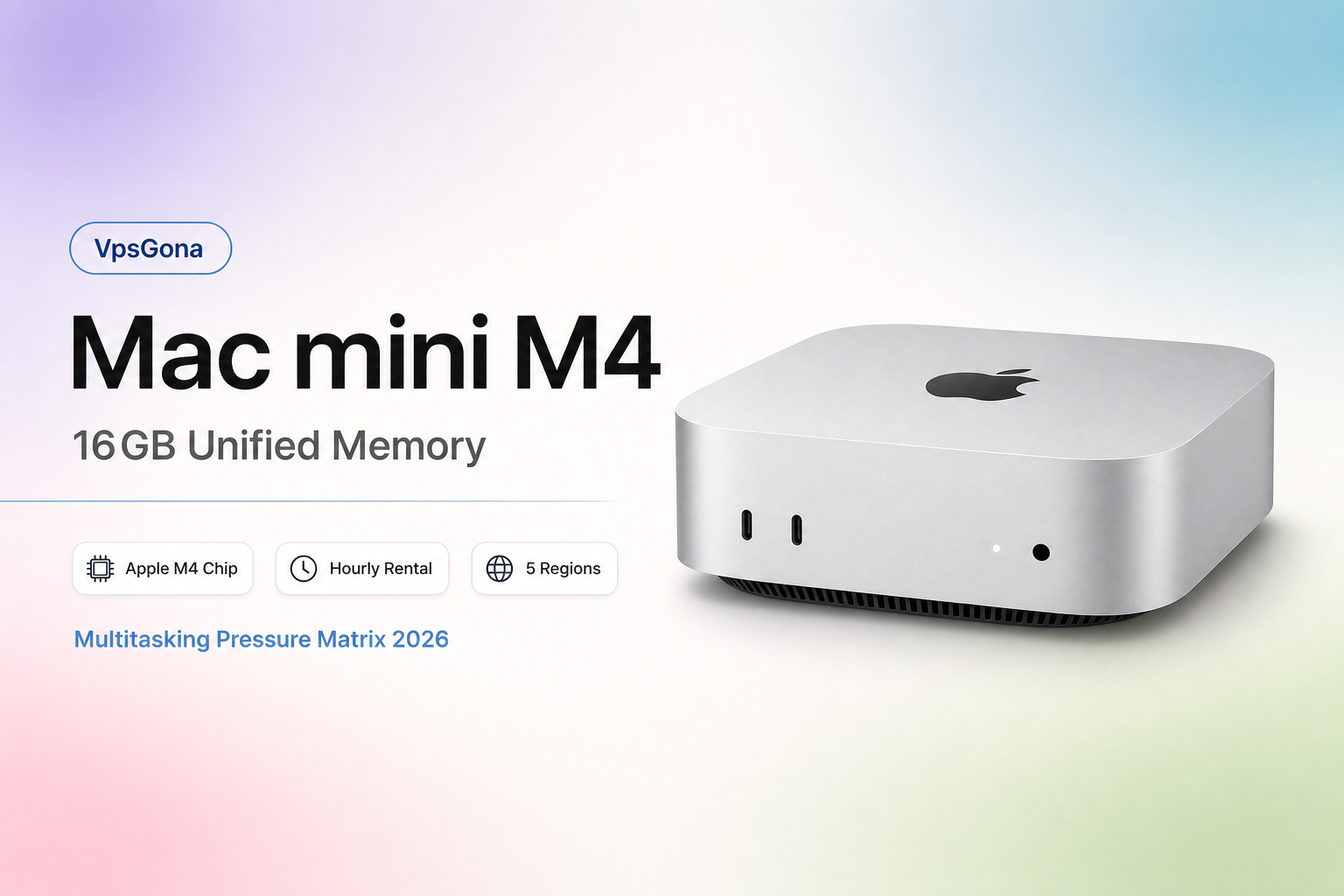
Supercharge Your AI Workflows with Dedicated Mac M4 Power
Experience zero-lag Siri AI performance on dedicated Mac mini M4 nodes with 16GB unified memory and 10-core CPU power.
Deploy your professional macOS environment in just 5 minutes with global nodes in Singapore, Japan, Korea, Hong Kong, and the US.